

Configure Deduplication
Step-by-step guide to setting up and using the Deduplication feature, including interface reference and configuration details.
Getting Started
Section titled “Getting Started”-
Navigate to Deduplication
Click Deduplication in the left sidebar to access the Pairs view.
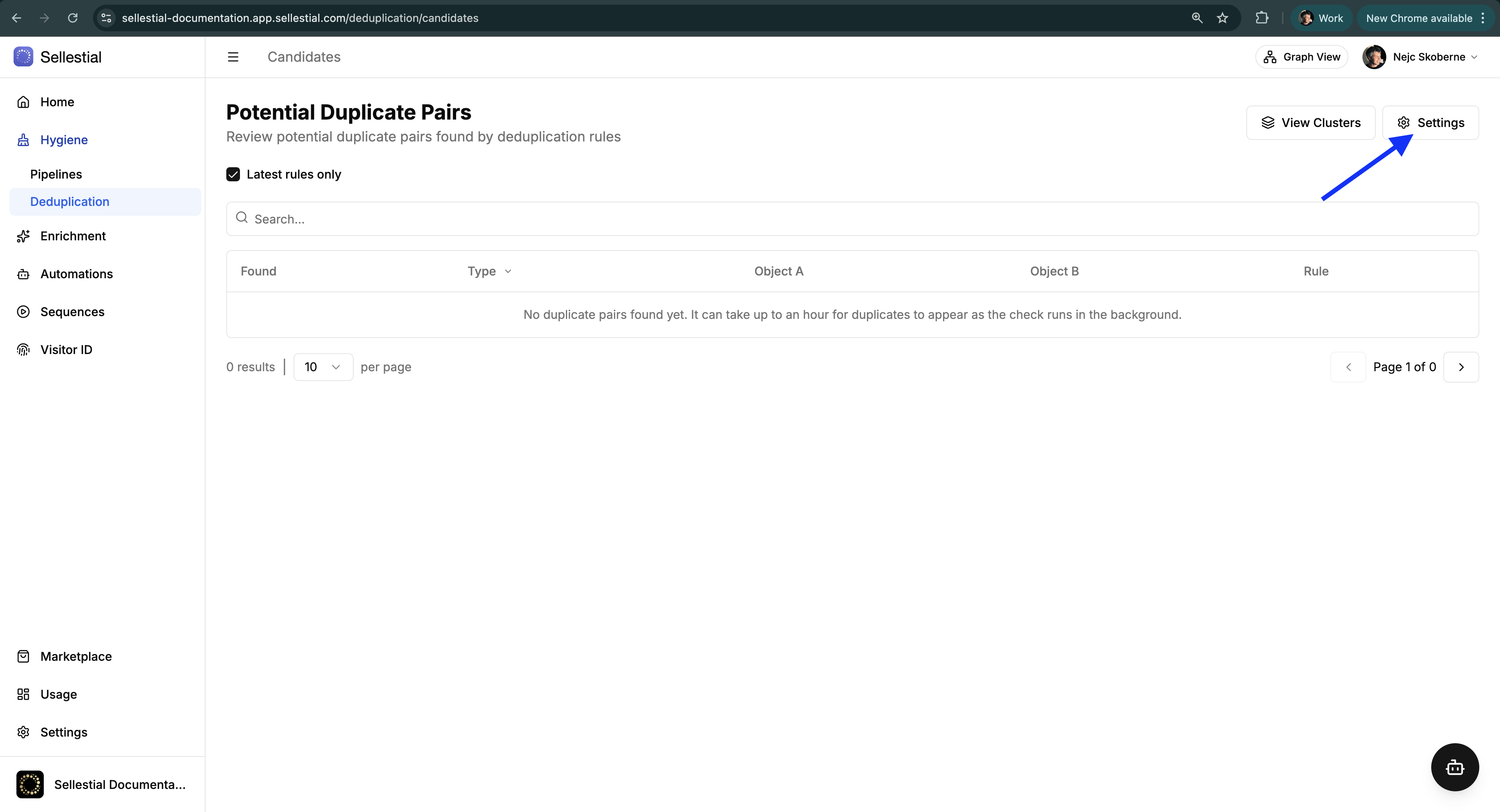
You’ll see the Potential Duplicate Pairs interface with filters, search, and a Settings button.
-
Open Settings
Click the Settings button (top right) to configure matching rules.
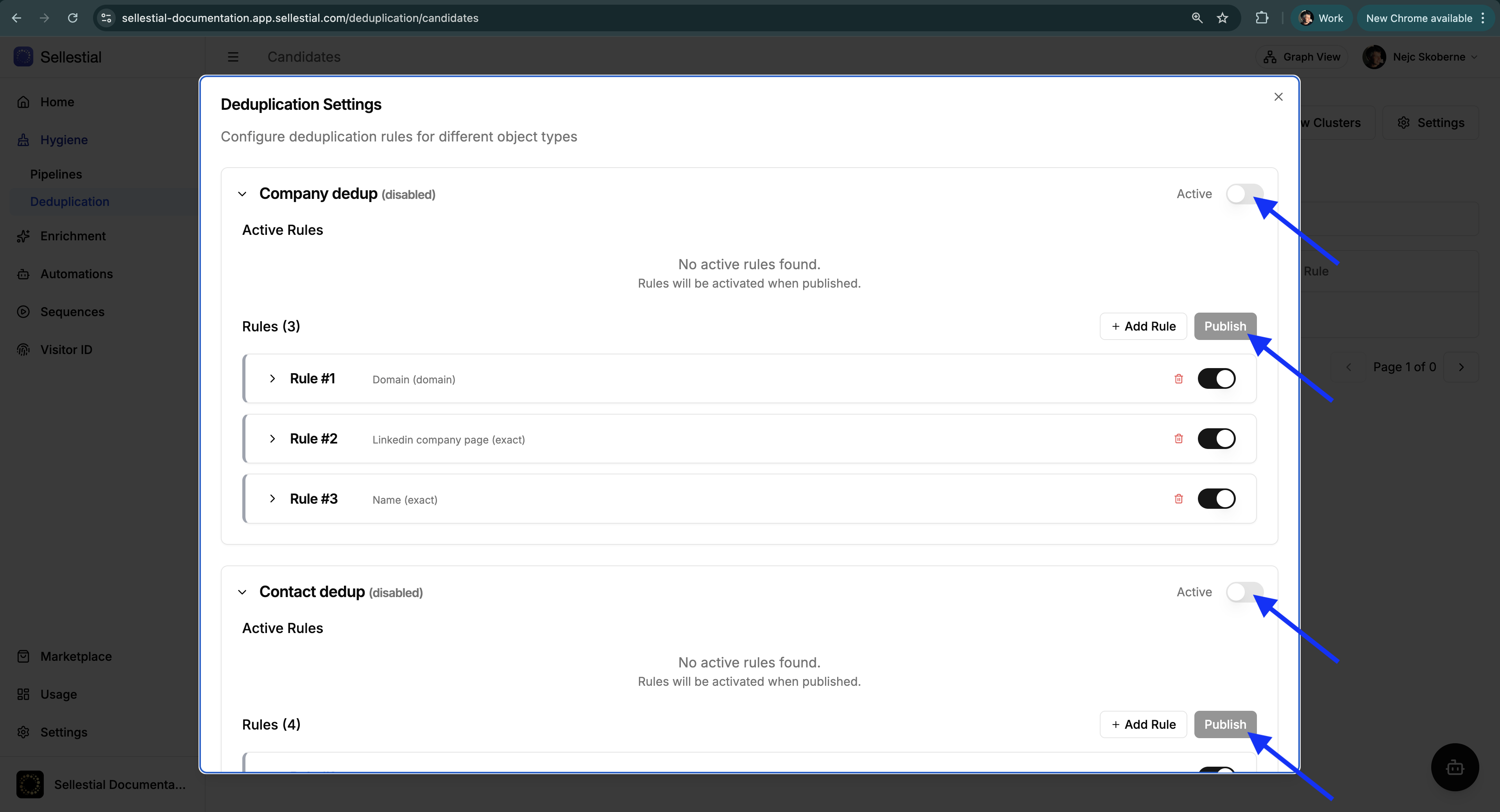
The Settings modal shows:
- Company dedup and Contact dedup sections (collapsible)
- Active toggle to enable deduplication for each object type
- Active Rules block (currently running rules)
- Rules list (your draft rules being edited)
- + Add Rule button to create new rules
- Publish button to activate changes
- Object count showing scope (e.g., “114,214 objects are ready to be checked”)
-
Review Default Rules
Both Company and Contact sections include proven default rules optimized for common scenarios. You can use these as-is or customize them.
-
Enable and Publish
- Toggle Active for Company and/or Contact deduplication
- Review your draft rules (the defaults are a good starting point)
- Click Publish to activate
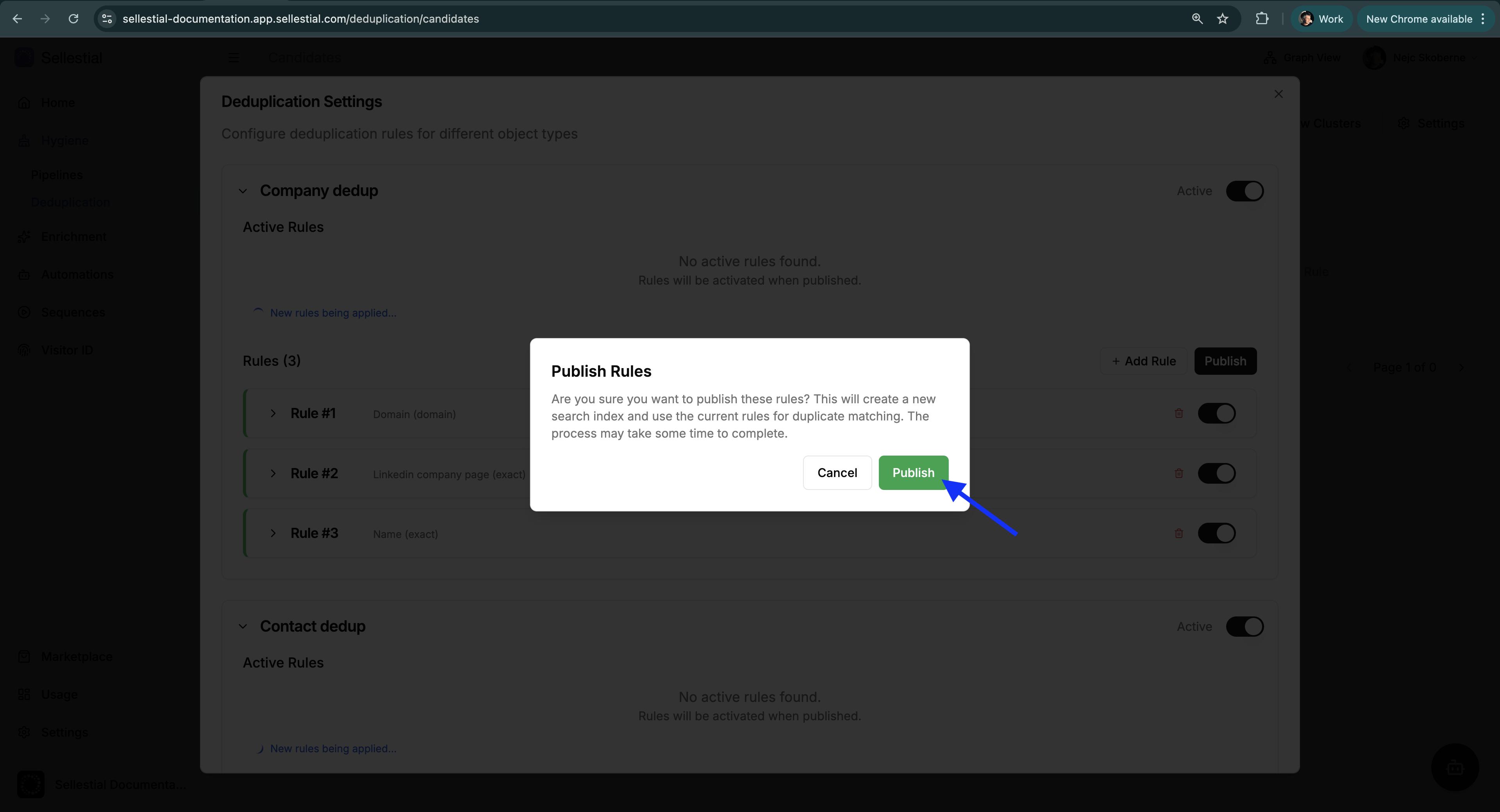
Confirm the publish action. This creates a new search index and applies your rules.
-
Wait for Background Processing
Watch for status indicators:
- “New rules being applied…” (in Settings)
- “Deduplication check is running in the background…” (on Pairs/Clusters pages)
Processing time varies: minutes for small databases, hours for 100K+ records.
-
Review Results
After processing completes:
- Browse Pairs for one-to-one comparisons
- Switch to Clusters (via View Clusters button) for groups
- Click eye icons to see Rule Details
- Use external links to open records in HubSpot
-
Take Action
Process duplicates using pipelines or manual merging:
- Recommended: Install Duplicate Resolver from Marketplace (AI Agent that validates and merges company duplicates)
- Configure pipeline to use “Deduplication type source” to ingest pairs automatically
- Enable “Require Human Review” for merge confirmation
- Or enroll specific clusters via Add to pipeline button
- Or merge manually in HubSpot
The Duplicate Resolver pipeline (available in Marketplace) is specifically designed to work with deduplication:
- AI Agent with web research validates if pairs are true duplicates
- Intelligently selects primary record based on data quality
- Safely merges while preserving associations
- Available for Companies (Contact version coming soon)
See Pipeline Integration section below for details.
Interface Reference
Section titled “Interface Reference”Potential Duplicate Pairs
Section titled “Potential Duplicate Pairs”URL: /deduplication/candidates
Review one-to-one suspected duplicates:
Table Columns:
- Found — Timestamp when the pair was flagged
- Type — Contact dedup or Company dedup
- Object A / Object B — Details of each record in the pair
- Each includes an external-link icon to open the HubSpot CRM record
- For contacts: First name, Last name, Company name
- For companies: Company name, domain
- Rule — Which rule matched (click the eye icon to open Rule Details modal)
Filters & Controls:
- Type — Select exactly one: Company dedup or Contact dedup
- Latest rules only toggle — Show only pairs from current published rules, or include historical
- Search — Free-text search across all pair data
- Settings button — Opens Deduplication Settings
Rule Details Modal:
Click the eye icon next to any rule to see exactly which fields matched:
| Field | Match Type |
|---|---|
LinkedIn URL (hs_linkedin_url) | Exact |
Shows field names, HubSpot property names, and the match type used.
Potential Duplicate Clusters
Section titled “Potential Duplicate Clusters”URL: /deduplication/clusters
Review groups of 2+ records that match together:
Table Columns:
- Created — Timestamp when cluster was generated
- Type — Company dedup or Contact dedup
- Size — Number of records in the cluster (badge)
- Objects — Preview of member names + “View all X members” link
- Rule — The rule that produced the cluster
- Actions → Add to pipeline — Enroll cluster into a processing pipeline
Filters & Controls:
- Type — Select exactly one: Company dedup or Contact dedup
- Size — Filter by minimum cluster size (2+, 3+, 4+, 5+)
- View Pairs button — Jump to the Pairs view for the same object type
- Settings button — Opens Deduplication Settings
All Cluster Members Dialog:
Click “View all X members” to see the complete list of records in the cluster.
Enroll Cluster into Pipeline:
Click Add to pipeline to open a picker showing available processing pipelines. Select a pipeline and click Enroll to queue the cluster for processing.
Deduplication Settings Reference
Section titled “Deduplication Settings Reference”The Settings modal (accessed via Settings button on Pairs or Clusters pages) provides complete control over duplicate detection rules.
Layout Structure
Section titled “Layout Structure”Two Object Type Sections:
- Company dedup (collapsible)
- Contact dedup (collapsible)
Each section contains:
| Element | Description |
|---|---|
| Active toggle | Enable/disable deduplication for this object type (shown on right) |
| Active Rules block | Currently published and running rules. Shows “No active rules found” until you publish. |
| Rules list | Draft rules you’re editing. Shows count like “Rules (3)”. Editable but not active until published. |
| + Add Rule button | Create new matching rules |
| Publish button | Apply draft rules and trigger background processing |
| Object count | Example: “114,214 objects are ready to be checked for duplicates” |
Active Rules vs Draft Rules
Section titled “Active Rules vs Draft Rules”Active Rules block = Currently running in production
Rules list = Your working draft (not active)
Message: “Rules will be activated when published.”
Click Publish to promote drafts to active.
Publishing Workflow
Section titled “Publishing Workflow”When you click Publish, a confirmation dialog appears asking:
“Are you sure you want to publish these rules? This will create a new search index and use the current rules for duplicate matching. The process may take some time to complete.”
Actions:
- Cancel — Discard and return to editing
- Publish — Confirm and start background processing
After publishing:
- “New rules being applied…” appears in Settings
- Background process checks all eligible objects
- Pairs/Clusters update as results are computed
Match Types Reference
Section titled “Match Types Reference”Values must be identical:
- Case-sensitive comparison
- No typos or variations allowed
- Best for: Domains, URLs, email addresses, text IDs
- Example:
acme.commatchesacme.combut NOTAcme.com
Tolerant of minor spelling differences:
- Handles typos and variations
- Similarity threshold applied
- Best for: Names, company names, text fields
- Example:
Acme CorpmatchesACME Corporation
Numeric
Section titled “Numeric”Numeric equality comparison:
- Compares numeric values
- Best for: HubSpot IDs, employee counts, any numeric identifiers
- Example:
12345matches12345
Domain
Section titled “Domain”Second-level domain matching:
- Ignores subdomains and protocols
- Groups by base domain (e.g.,
acme.com) - Best for: Company website URLs, email domains
- Example:
www.acme.commatchesblog.acme.com(both areacme.com)
Nickname
Section titled “Nickname”Resolves common nickname variations:
- Matches nicknames to formal names
- Best for: Contact first names
- Example:
BillmatchesWilliam,BobmatchesRobert,LizmatchesElizabeth
Phonetic
Section titled “Phonetic”Matches phonetically similar strings:
- Uses Soundex-like phonetic algorithms
- Best for: Names with variant spellings
- Example:
SmithmatchesSmythe,CatherinematchesKatherine
A rule can have multiple conditions with different match types. For a pair/cluster to match the rule, ALL conditions must match (AND logic).
Example: Full name (Fuzzy) AND Company ID (Numeric) means both the name must be similar AND the company ID must be exactly equal.
Default Rules Reference
Section titled “Default Rules Reference”When you first open Settings, you’ll see these proven default rules:
Company Deduplication
Section titled “Company Deduplication”| Rule | Field | Match Type | Description |
|---|---|---|---|
| Rule #1 | Domain (domain) | Domain | Groups by second-level domain (www.acme.com = blog.acme.com) |
| Rule #2 | LinkedIn company page (linkedin_company_page) | Exact | Authoritative identifier |
| Rule #3 | Name (name) | Exact | Identical company names |
Contact Deduplication
Section titled “Contact Deduplication”| Rule | Fields | Match Types | Description |
|---|---|---|---|
| Rule #1 | Full name or email + Company ID | Fuzzy + Numeric | Same person at same company (high precision) |
| Rule #2 | Full name or email + Company name | Fuzzy + Fuzzy | Same person at same company (by name) |
| Rule #3 | Full name or email + Associated company name | Fuzzy + Fuzzy | With company association |
| Rule #4 | LinkedIn URL (hs_linkedin_url) | Exact | Highest confidence signal |
Company: Rule #1 uses Domain matching to catch subdomain variations. Rules #2-3 use Exact for high precision.
Contact: Rules #1-3 combine Fuzzy name matching with company identifiers for precision. Rule #4 is the highest confidence signal.
Rule Strategy Guide
Section titled “Rule Strategy Guide”For Companies
Section titled “For Companies”Start with (high confidence):
- Domain match on
domainfield — catches subdomain variations - Exact on
linkedin_company_page— authoritative identifier - Exact on
name— identical company names
Add if needed (broader recall):
- Fuzzy on
namefor typo variations - Phonetic on
namefor spelling variants - Numeric on
linkedin_numeric_idif you have LinkedIn data
For Contacts
Section titled “For Contacts”Start with (high confidence):
- Exact on
hs_linkedin_url— unique personal identifier - Exact on
email— very reliable - Fuzzy on
hs_full_name_or_email+ Numeric onassociatedcompanyid— same person at company
Add if needed (broader recall):
- Nickname on first name fields
- Phonetic on name fields for variants
- Fuzzy combinations with company name fields
Building Effective Rules
Section titled “Building Effective Rules”High precision (fewer false positives):
- Use Exact or Numeric match types
- Combine multiple fields with AND logic
- Match on unique identifiers
Broader recall (find more duplicates):
- Add Fuzzy, Domain, Nickname, or Phonetic
- Use fewer field combinations
- Match on common fields
Balance both:
- Start strict, add broader rules gradually
- Review results after each publish
- Disable rules that generate too many false positives
Match Type Selection Guide
Section titled “Match Type Selection Guide”By Confidence Level
Section titled “By Confidence Level”High Confidence (Exact, Numeric):
- Safe for automated processing
- Minimal false positives
- Best for: LinkedIn URLs, emails, domains, IDs
Medium Confidence (Domain, Fuzzy + constraints):
- Good for manual review
- Some false positives expected
- Best for: Domains with subdomains, names with company context
Lower Confidence (Fuzzy, Nickname, Phonetic alone):
- Broader recall, more false positives
- Requires careful review
- Best for: Discovery, then filtering
By Field Type
Section titled “By Field Type”Unique Identifiers:
- LinkedIn URLs → Exact
- Email addresses → Exact
- HubSpot IDs → Numeric
Domain Fields:
- Company websites → Domain (groups subdomains)
- Email domains → Domain or Exact
Name Fields:
- Company names → Exact or Fuzzy
- Contact names → Fuzzy + other constraints
- First names → Nickname (with constraints)
Text Fields:
- Short text → Exact or Fuzzy
- Addresses → Fuzzy
- Multi-word → Phonetic (for variants)
Troubleshooting
Section titled “Troubleshooting”Too Many False Positives
Section titled “Too Many False Positives”Solutions:
- Switch from Fuzzy/Phonetic to Exact or Domain matching
- Add more fields to matching criteria (AND logic increases precision)
- Disable overly broad single-field Fuzzy rules
- Use Numeric matching on IDs for stricter comparison
- Publish changes and wait for new results
Missing Duplicates
Section titled “Missing Duplicates”Solutions:
- Add Fuzzy matching to handle typo variations
- Try Domain matching instead of Exact for website fields
- Add Nickname matching for contact first names
- Add Phonetic matching for names with variant spellings
- Verify that fields have data in both records
- Ensure rules are published and Active toggle is on
No Pairs/Clusters Appearing
Section titled “No Pairs/Clusters Appearing”Check:
- Rules are published (not just saved)
- Active toggle is enabled for object type
- Background processing completed (“New rules being applied…” gone)
- “Latest rules only” isn’t filtering out results
- Fields in rules actually have data in HubSpot
”View Pairs” or “View Clusters” Shows Empty
Section titled “”View Pairs” or “View Clusters” Shows Empty”Possible causes:
- No matches for the current filter settings
- Rules are too strict (all Exact on rare fields)
- Background processing still running
- Object type filter mismatch
Solutions:
- Clear filters and try again
- Check “Latest rules only” toggle
- Add broader match types to rules
- Wait for background processing to complete
Pipeline Integration
Section titled “Pipeline Integration”Duplicate Resolver (Recommended)
Section titled “Duplicate Resolver (Recommended)”The Duplicate Resolver is an AI Agent pipeline from the Marketplace specifically designed to process duplicates detected by this feature.
How it works with Deduplication:
- Deduplication rules detect potential duplicates → create pairs
- Duplicate Resolver ingests pairs via “Deduplication type source”
- Agent researches each pair using web tools (Google, websites, LinkedIn)
- Agent classifies: CONFIRMED DUPLICATE, NOT DUPLICATE, or NEEDS HUMAN REVIEW
- For confirmed duplicates, intelligently merges into primary record
Key capabilities:
- External verification (doesn’t rely solely on CRM data)
- Intelligent primary record selection (based on data completeness and reliability)
- Safe merging with association preservation
- Manual entry prioritization over enrichment data
- Large merge safety (>30 associations require review)
Availability:
- ✅ Company Duplicate Resolver — Available now
- ⏳ Contact Duplicate Resolver — Coming soon
Setup:
- Browse Marketplace → Install “Duplicate Resolver”
- In pipeline Settings: Set input source to “Deduplication type source”
- Select object type: Company
- Enable “Require Human Review”
- Deploy pipeline
- Agent processes pairs automatically as deduplication detects them
Other Processing Options
Section titled “Other Processing Options”Using Any Pipeline with Pairs:
- Configure pipeline input source: “Deduplication type source”
- Select specific rules or “All rules”
- Pipeline processes pairs continuously
Enrolling Clusters:
- Click Add to pipeline on any cluster
- Choose from available pipelines
- Enroll entire group at once
Pipeline Types:
- Agent — Research-backed decisions (Duplicate Resolver)
- Code — Deterministic logic
- StructuredData — Normalization and cleaning
System Behavior
Section titled “System Behavior”After Publishing Rules:
Status indicators appear:
- “New rules being applied…” (in Settings)
- “Deduplication check is running in the background…” (on Pairs/Clusters pages)
Processing time:
- Small databases (< 10K): Minutes
- Medium databases (10K-100K): 30 minutes to 2 hours
- Large databases (100K+): Several hours
Continuous detection:
- New records checked automatically
- Existing records re-evaluated when rules change
- No impact on HubSpot performance
Next Steps
Section titled “Next Steps”Need conceptual background?
→ Data Deduplication Overview — Understand why and when to use deduplication
Ready to process duplicates?
→ Template Marketplace — Find merge and cleaning pipelines
Want deeper pipeline knowledge?
→ Pipeline Kinds — Learn about Agent, Code, and StructuredData capabilities