

Configure Enrichment
Step-by-step guide to setting up Enrichment to automatically enhance your HubSpot contacts and companies with LinkedIn data.
Getting Started
Section titled “Getting Started”-
Navigate to Enrichment Settings
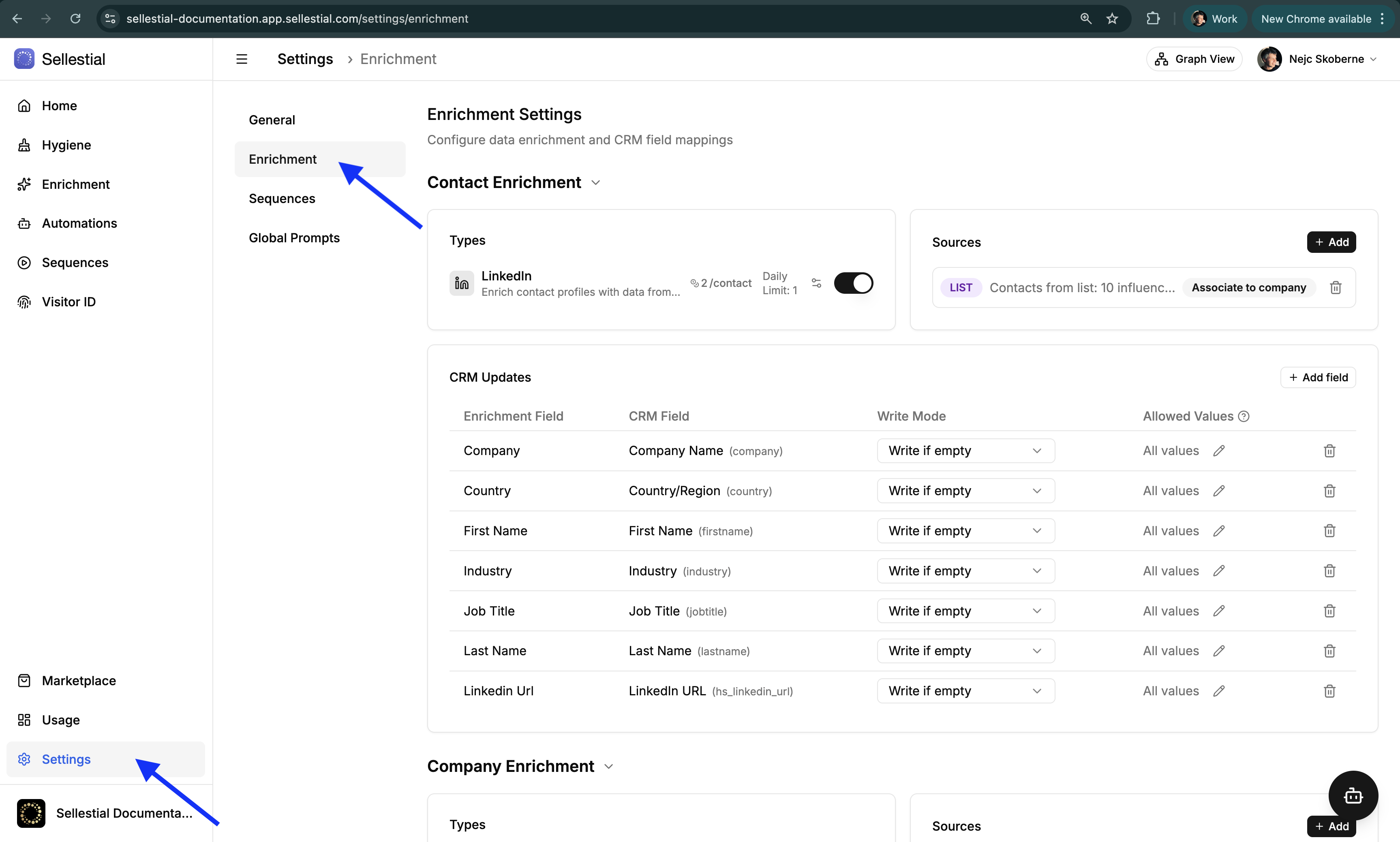
Go to Settings → Enrichment to access the configuration page.
You’ll see two collapsible sections:
- Contact Enrichment — Configure contact enrichment (2 credits/contact)
- Company Enrichment — Configure company enrichment (1 credit/company)
Each section has three areas: Types, Sources, and CRM Updates
-
Enable Enrichment Type
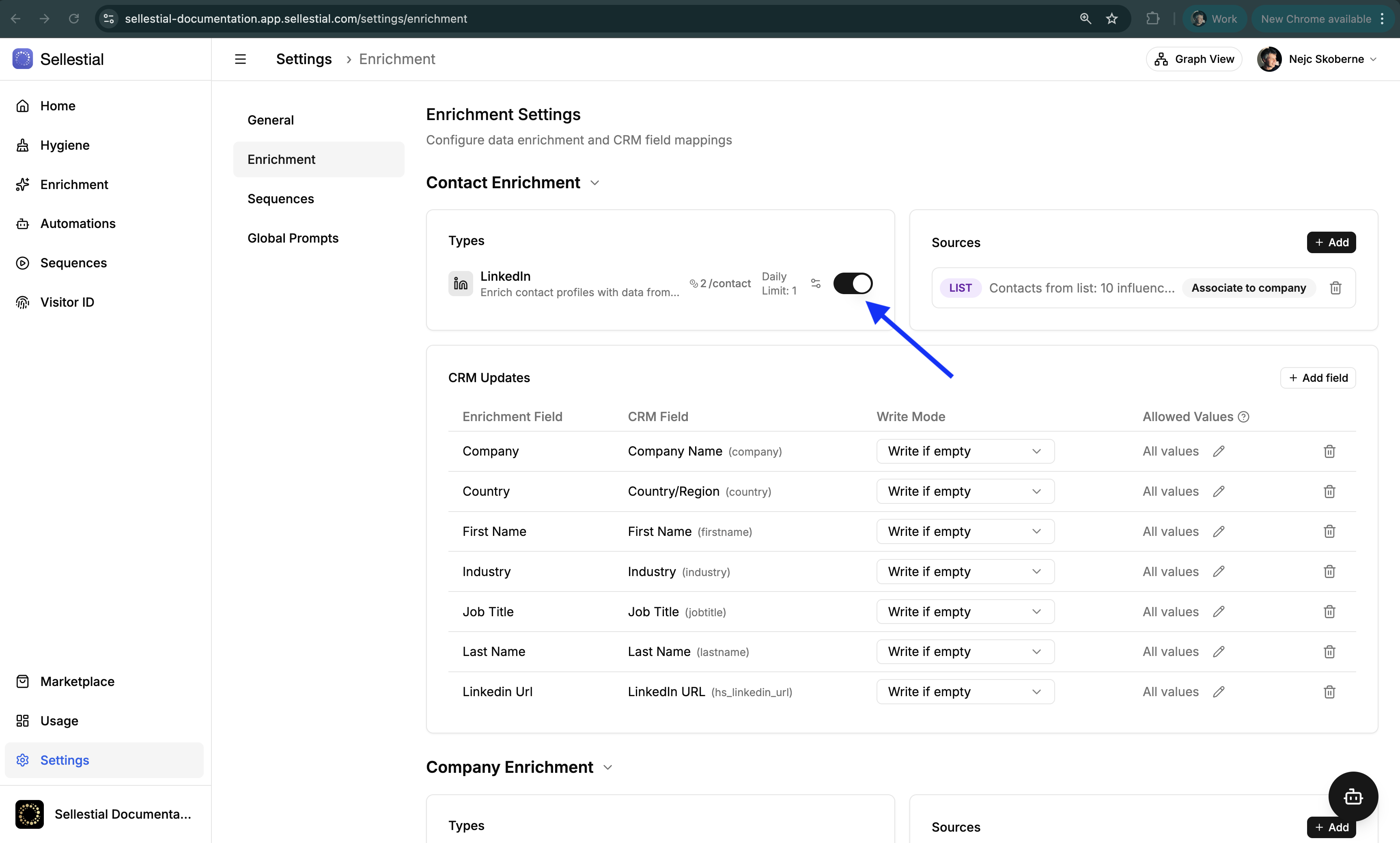
In the Types section (Contact or Company):
- LinkedIn enrichment type shows the credit cost per record
- Set Daily Limit to control processing speed (e.g., 100/day)
- Toggle ON to enable
-
Add Sources
Click + Add in the Sources section to define which records to enrich.
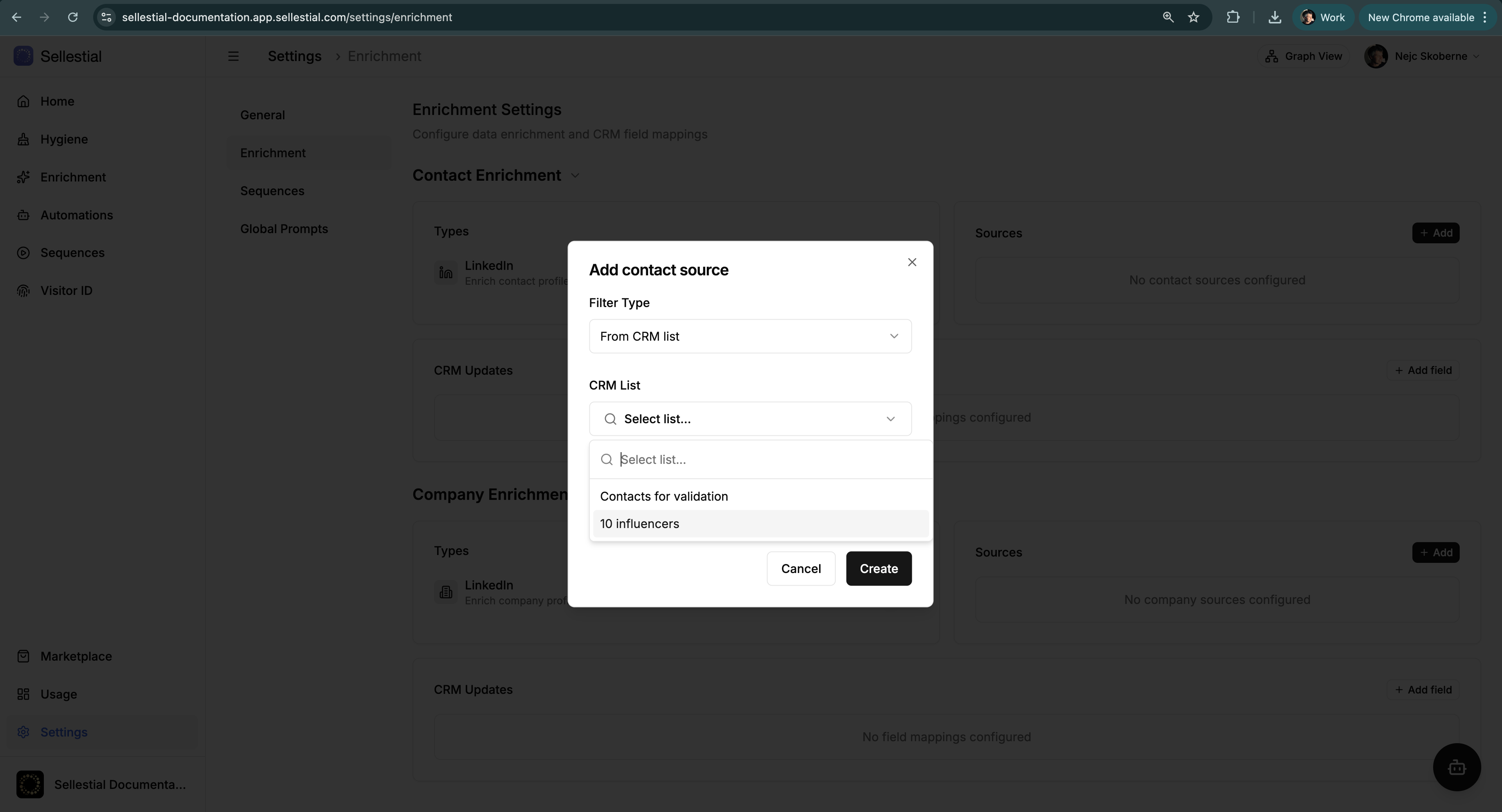
Choose Filter Type:
- All records — Enrich every contact/company in HubSpot
- Latest records — Only records created in last X days (recommended for ongoing enrichment)
- From CRM list — Select specific HubSpot list/segment
- Specific records — Paste comma-separated record IDs
- From events — Subscribe to pipeline events (with optional cutoff date)
For Contact Enrichment only: Auto-associate to companyWhen enabled, the enrichment flow:
- Opens the contact’s company LinkedIn page
- Searches HubSpot for an existing company (by domain or LinkedIn URL)
- If company exists: Associates the contact to it
- If company doesn’t exist: Creates a new company record
- If new company created + Company Enrichment mappings configured: Enriches the new company automatically
Cost: +1 credit per contact (total: 3 credits with auto-associate enabled)
Note: Existing companies are NOT re-enriched. Only newly created companies are enriched (and only if you have Company Enrichment mappings configured).
Click Create to save the source.
-
Configure Field Mappings
Click + Add field in the CRM Updates section.
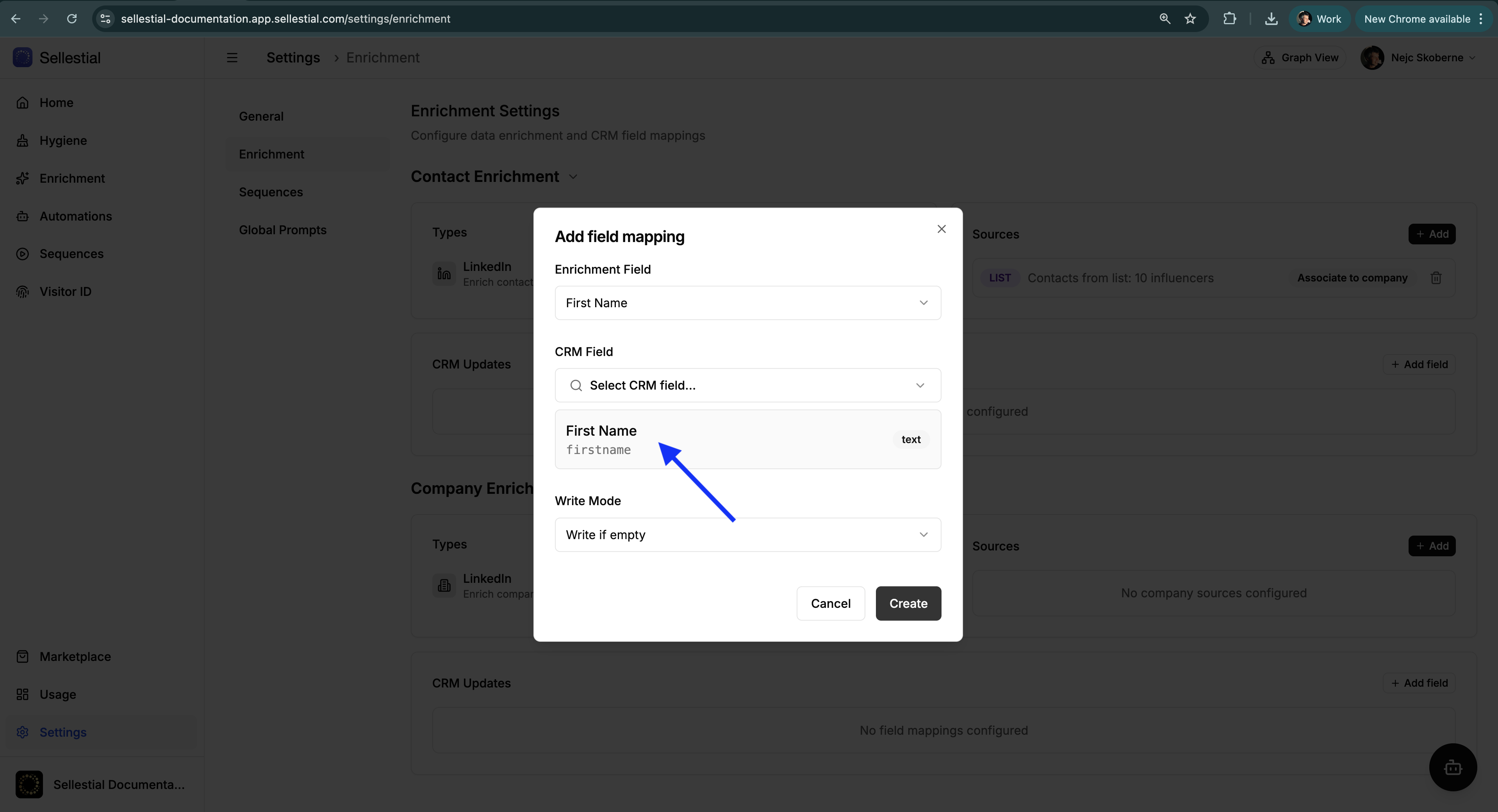
For each mapping:
- Enrichment Field — Select from available Sellestial enrichment data (see field catalogs below)
- CRM Field — Choose target HubSpot property (shows property name and internal name)
- Write Mode — Choose how to handle existing data:
- Write if empty — Only populate blank fields (safest)
- Always overwrite — Replace all values (standardization)
- Write if not modified by user — Respect manual edits
- Skip — Don’t write this field
- (Optional) Allowed Values — Define vocabulary for enum fields (Industry, Country, etc.)
Click Create to save the mapping.
Repeat for all fields you want to enrich.
-
Monitor Results
Navigate to Enrichment → Contact or Enrichment → Company to see the enrichment log.
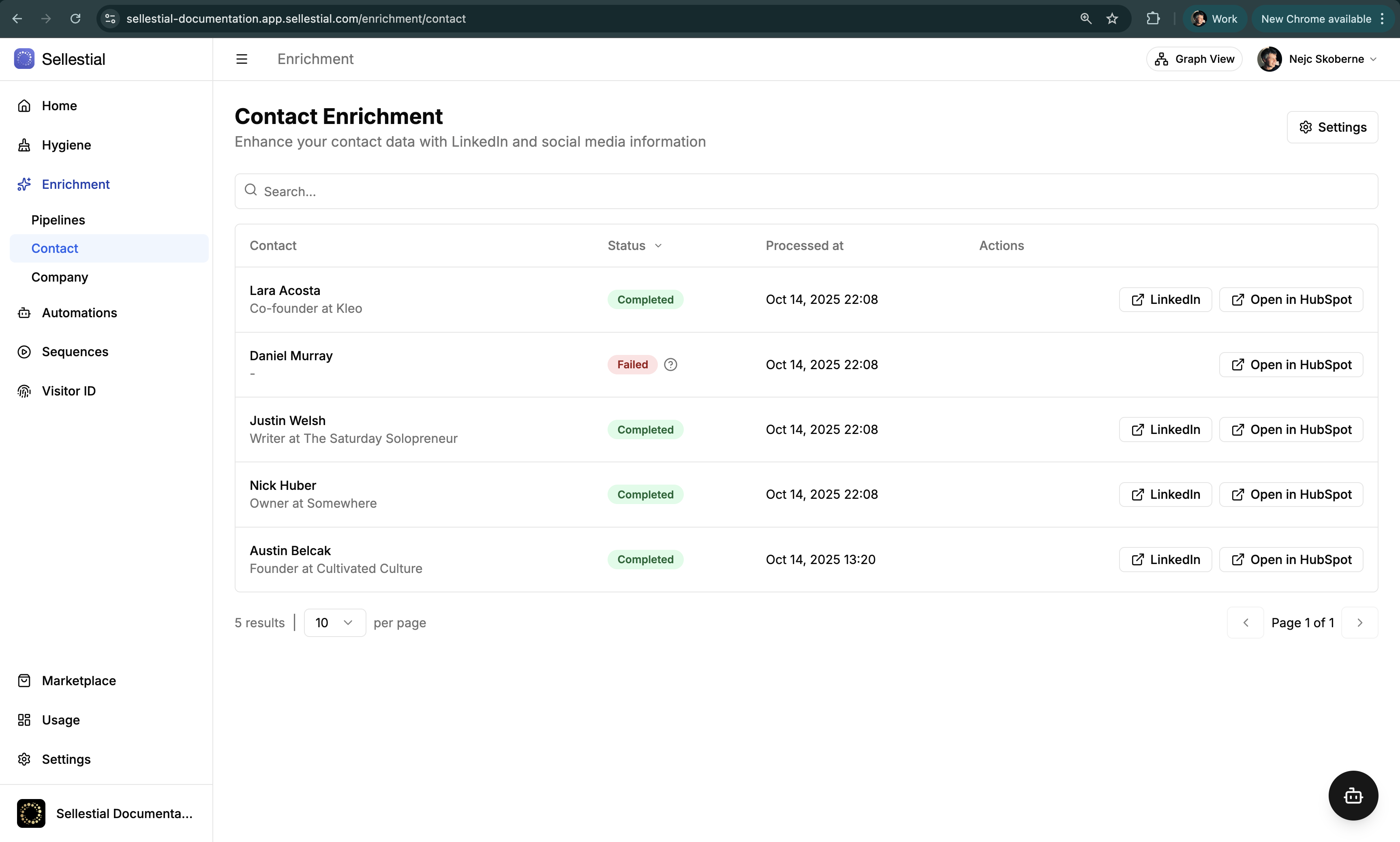
The log shows:
- Record name and details
- Status (Scheduled, In Progress, Completed, Failed, System Error, Skipped)
- Processed at timestamp
- Actions: LinkedIn (opens discovered profile), Open in HubSpot
Use the Status filter to find Failed or System Error items for investigation.
Available Enrichment Fields
Section titled “Available Enrichment Fields”Contact Enrichment Fields
Section titled “Contact Enrichment Fields”Map these LinkedIn profile fields to your HubSpot contact properties:
| Enrichment Field | Description |
|---|---|
| First Name | Contact first name |
| Last Name | Contact last name |
| Job Title | Latest job title at the associated company |
| Company | Associated company name |
| Country | Location country |
| Industry | Industry classification |
| LinkedIn Url | Contact LinkedIn profile URL |
| Company LinkedIn Url | Associated company LinkedIn page URL |
| Last Enrichment Attempt At | Timestamp of last enrichment |
| Last Enrichment Attempt Status | Status text of last attempt |
Company Enrichment Fields
Section titled “Company Enrichment Fields”Map these LinkedIn company and firmographic fields to your HubSpot company properties:
| Enrichment Field | Description |
|---|---|
| Name | Standardized company name |
| Domain | Company domain name |
| Description | Company description / about text |
| Country | Headquarters country |
| Industry | Industry classification |
| Founded Year | Year company was founded |
| LinkedIn Url | LinkedIn company page URL |
| Calculated Number Of Employees | Max Of (Number Of Employees, Employee Count From) |
| Number of Employees | Number of people associated with the company |
| Employee Count From | Lower bound of the company size range |
| Employee Count To | Upper bound of the company size range |
| Logo Url | Company logo image URL |
| Last Enrichment Attempt At | Timestamp of last enrichment |
| Last Enrichment Attempt Status | Status text of last attempt |
Allowed Values
Section titled “Allowed Values”LinkedIn returns inconsistent values for the same concept:
- Country: “USA”, “United States”, “US”, “U.S.A.”
- Industry: “Computer Software”, “Software”, “SaaS”, “Technology”, “Tech”
This creates dirty data and prevents accurate segmentation and reporting.
Define your standard vocabulary for each enum field:
Country: [“United States”, “Canada”, “United Kingdom”, “Germany”, …]
Industry: [“Software & Technology”, “Financial Services”, “Healthcare”, …]
Sellestial’s AI maps LinkedIn variations to your closest allowed value, ensuring clean, consistent data.
Best for: Industry, Country, State, Company Type, any enum/select property
Enrichment Statuses
Section titled “Enrichment Statuses”Records move through different statuses during processing:
| Status | Meaning | Action |
|---|---|---|
| Scheduled | Queued for processing (pending capacity or daily limit) | Wait or increase daily limit |
| In Progress | Currently being enriched | No action needed |
| Completed | Data successfully written to HubSpot | Verify in HubSpot if desired |
| Failed | Could not complete (no LinkedIn match or write error) | Check LinkedIn action, review mappings |
| System Error | Unexpected system issue | Retry scheduled automatically; contact support if persistent |
| Skipped | Intentionally skipped (source filters, limits, or no changes needed) | Review source configuration |
Filter the enrichment log by status to quickly investigate issues.
Next Steps
Section titled “Next Steps”Understand concepts:
→ Enrichment Overview — Learn about enrichment types, use cases, and best practices
Monitor results:
→ Usage — Track credit consumption and success rates
Validate data first:
→ Template Marketplace — Find validation and cleaning pipelines